
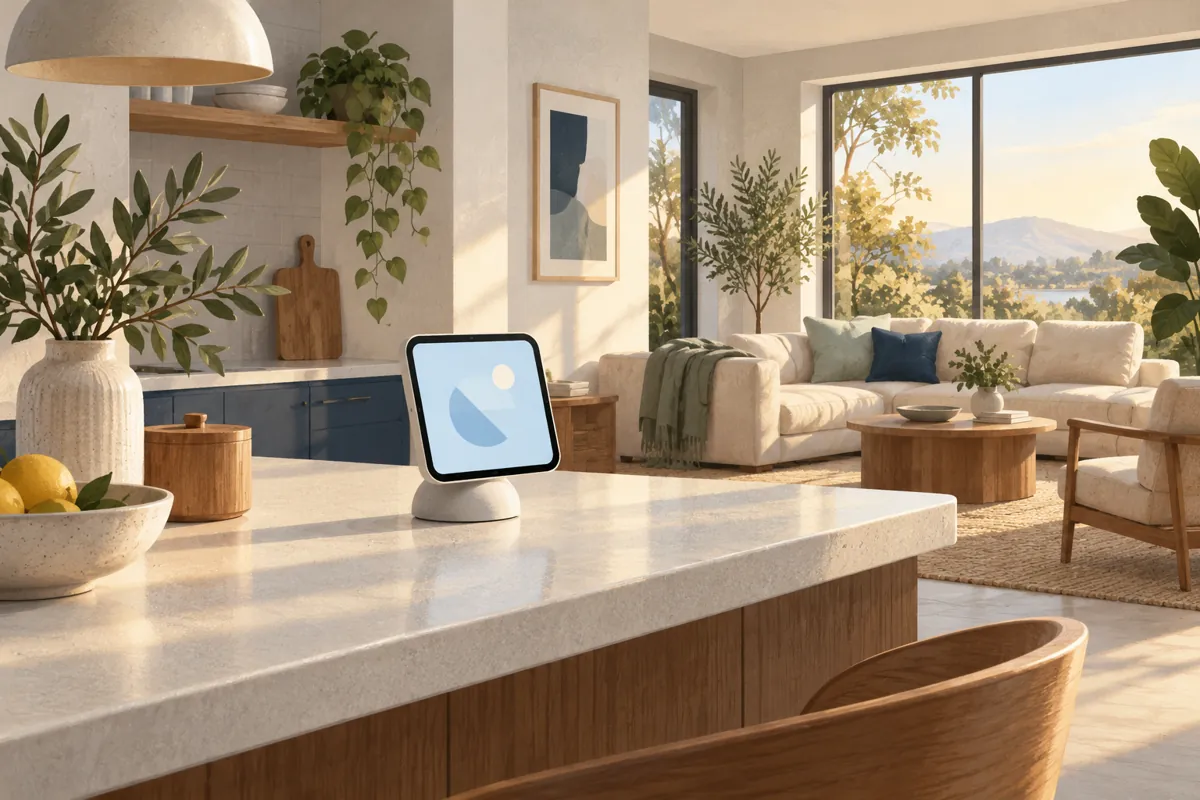
Apple HomeView is worth considering when a shared screen solves a problem your phone does not. The strongest reason is household access: one visible place for compatible home controls and common tasks. A purchase makes less sense if you mainly want a personal tablet or an unrestricted dashboard.
On this page
- Start with the job Apple HomeView would do
- Check every person, not just the buyer
- Audit the equipment you already own
- Choose tasks before choosing a room
- Compare the complete installation cost
- Know which unanswered questions matter to you
- Compare a shared display with the equipment you already use
- Separate essential features from launch uncertainty
- A practical buy or wait decision
- What this guide does not claim
The buying decision has four parts: people, existing equipment, daily tasks and installation. Work through them in that order. A good looking display cannot fix a missing device requirement or an unsupported camera.
Start with the job Apple HomeView would do
Write one sentence describing the change you want. For example, a visitor should be able to adjust a light without borrowing your phone. Or everyone should have a visible place to check the front door.
These are household problems. They are different from wanting another screen for watching videos or running every app you already use. Keep the intended job narrow enough that you can check whether the device really supports it.
A useful purchase should reduce friction in a routine you already have. Count how often that routine happens, who struggles with it and what the current workaround requires. That gives you a better measure of value than a long feature list.
| Your main goal | What to check first | Reason to wait |
|---|---|---|
| Shared home controls | Accessory support and household access | A required device has no documented connection path |
| Personal information at a glance | Enrollment and paired device requirements | The person who needs it lacks a qualifying device |
| Camera monitoring | Live view, recording and intelligence requirements separately | The expected camera function is unverified |
| Family scheduling | The calendar views and editing tasks you need | You need an undocumented workflow |
| Custom automation dashboard | The controls and app environment you require | A full custom dashboard is essential |
Check every person, not just the buyer
The person placing the order may have a recent iPhone. Their partner, children or visiting relatives may not. A household device needs a more careful check than a personal gadget.
Separate shared interaction from a personal profile. Apple describes basic use by guests and unrecognized people. Personal experiences have additional account, device and recognition requirements.
Check the iPhone and iPad requirements by feature for each resident who wants personal information. A phone that supports setup does not necessarily support every personal Siri function.
Do not turn that distinction into either extreme. An Android user is not automatically excluded from every shared function. Shared use also does not mean Android receives the same personal experience as an enrolled Apple user.
Our mixed phone household guide explains these scenarios. Use it before assuming that every person will see their messages or calendar on the display.
Audit the equipment you already own
List the model numbers of your cameras, lights, locks and thermostats. Then record how each one reaches Apple Home. A product that appears in its own app is not necessarily available in the Home app.
The Apple store describes Apple HomeView as a way to manage accessories already in your Home app. That gives an existing Apple Home household a useful starting point. It does not prove that every manufacturer app feature transfers.
For each device, write down the exact function you need. A camera image, a recording timeline and pan controls are separate functions. A light turning on and a manufacturer’s special lighting effect are also separate.
Keep an existing bridge until its role is understood. Removing equipment because the new product is called a hub can break a connection path you still need. Browse our compatibility guides while checking the model numbers and functions in your current setup.
Choose tasks before choosing a room
A kitchen counter might suit recipes, timers and common controls. A hallway might suit arrival routines and checking a camera. A bedside location needs a different balance of viewing comfort, light and privacy.
Before settling on a room, stand where the intended users will actually interact. Check the sightline, outlet location and whether someone would need to cross the house to use the screen. A central location on a floor plan is not always a convenient daily location.
Think about access when a room is busy. A screen beside a food preparation area can become awkward during cooking. A hallway location can be convenient for controls but less pleasant for a long call.
These are placement decisions, not measured performance claims. The best place depends on the task and the people using it. Plan the location before buying the physical model.
Compare the complete installation cost
The display price is only the start of some installations. Apple offers a tabletop version and a separate wall model. The wall route adds mounting and power decisions.
Use a complete shopping list: display, mount, power source, necessary network equipment and installation. Keep optional services on a separate line. Otherwise a lower hardware price can look attractive while hiding a larger setup cost.
Do not compare a complete tabletop package with a wall display alone. Compare two usable setups. Our complete cost guide explains the categories and links to the calculator.
Apple HomeView has a US starting price of $299 in the official store. Check the actual route you intend to use before deciding whether that is your total.
Know which unanswered questions matter to you
A missing detail is not automatically a reason to reject the product. It matters when your main reason for buying depends on that detail. Treat essential and optional functions differently.
If a specific video service is essential, confirm that service directly. Generic support for third party media apps is not enough. If an optional animation or display face is undocumented, it may have little effect on the purchase decision.
The same test applies to network roles. The technical sheet lists Thread networking, but that alone does not settle every hub replacement scenario. Keep working network components until their replacement role is documented.
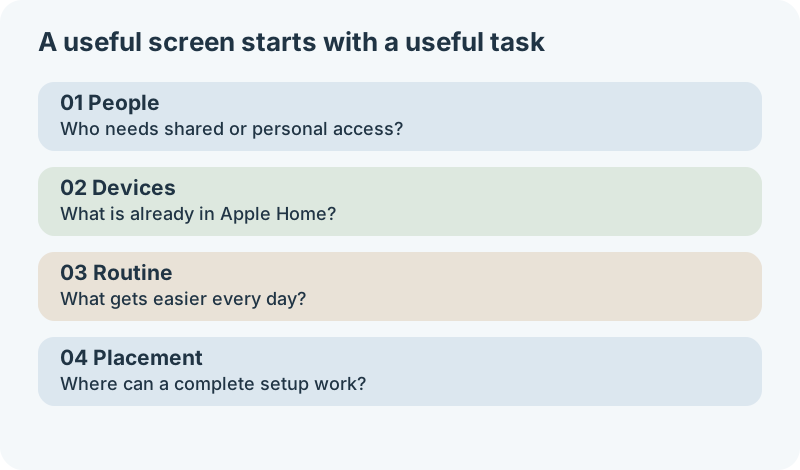
Read the diagram
- People: identify who needs common controls and who needs personal content.
- Devices: list the exact equipment and connection paths you already have.
- Routine: name the change that will make a recurring task easier.
- Placement: compare complete usable setups in the intended location.
Compare a shared display with the equipment you already use
Apple HomeView is worth considering when reaching for a personal phone repeatedly creates friction for the household. A dedicated screen gives a routine a predictable place. That benefit is smaller when everyone already uses an existing control comfortably.
For a lighting purchase, compare Apple HomeView with the current wall switch and phone controls. If the problem is finding a switch in the dark, a better placed physical control may solve it more directly. If the problem is choosing several scenes from a common location, a shared display could be useful.
For family communication, separate calling someone from broadcasting a message between rooms. Decide which people and endpoints need to participate. A feature name alone does not establish that the household’s existing communication routine transfers.
For a camera purchase, identify whether you want to answer the door, watch a live feed or find a past event. These require different capabilities. Buying a new display cannot by itself add a missing feature to the camera.
A purchase worksheet with a clear stopping rule
| Household problem | Existing solution to compare | Reason to consider a shared screen | Stop and verify when |
|---|---|---|---|
| Visitors cannot find lighting controls | A labeled switch or common control | Several useful scenes need one visible location | The desired accessories or permissions are unclear |
| Cooking interrupts phone use | The current recipe and timer arrangement | A stationary screen avoids moving a personal device | The required recipe or media workflow is undocumented |
| One person manages every smart device | Existing physical controls and shared access | Other residents need a convenient local interface | They expect equal personal features without eligible devices |
| Doorstep activity is difficult to check | The current doorbell app or camera view | A common viewing position suits the routine | Recording, audio or camera functions have not been confirmed |
Use one row for the main reason you would buy. If that row fails its verification check, a long list of secondary features should not overrule it. The worksheet helps keep a practical purchase from becoming an open ended accessory project.
Separate essential features from launch uncertainty
Classify each wanted feature as essential, useful or incidental. Essential means the purchase would lose its purpose without it. Useful features improve the result; incidental features should have little influence on spending.
Next record whether the feature is documented, dependent on another product, or waiting for evidence. This creates a decision you can revisit when new information appears. For example, an attractive display face need not delay a controls purchase, while a required unsupported app should.
The launch date is November 13, 2026, according to the release announcement. Announced features are therefore the evidence available for this guide. A specification comparison cannot settle touch responsiveness, recognition reliability or performance in your room.
If you plan to preorder, save the exact claims your decision depends on. Check the seller’s current return terms and accessory return terms before paying. A separately purchased mount and an installation service may require separate arrangements.
Three decisions to make before adding accessories
- Choose the household task that justifies the screen and identify who must be able to use it.
- Check the eligibility of those people and the connection path of the devices involved.
- Choose the physical location and budget for a complete installation that works there.
The tabletop and wall model comparison belongs at the third step. Choosing a wall mount first can commit the household to a location before the actual routine has been considered.
A practical buy or wait decision
Consider buying when the household task is clear, the prerequisites are documented and the complete installation fits your budget. Keep the purchase modest. You do not need to replace every accessory to make one useful improvement.
Wait when your essential function depends on an unconfirmed app, accessory path or installation detail. Waiting for evidence is different from waiting for a vague promise of better technology. Write down the one missing fact that would change your decision.
Reuse existing equipment when it already solves the task well. An iPad dashboard may suit a custom screen better. A phone may remain the simplest answer for a person who rarely needs a shared display.
Apple HomeView should earn its place through daily use, not through being new. A shared screen has value when it makes a real household routine easier. Compare your existing iPad against the actual task before paying for another display.
What this guide does not claim
This is a buying framework based on announced documentation. We have not tested shipping hardware, recognition accuracy or long term reliability. Those questions require actual device access and repeatable observations.
Keep a short purchase checklist with your required tasks and unresolved details. When new documentation arrives, update those entries. That is more useful than restarting the decision each time another announcement summary appears.