
Apple HomeView Android compatibility is a household question, not a simple yes or no label. An Android user can benefit from documented shared interaction in an established Apple Home. That does not give them the same personal enrollment or private content experience as a qualifying Apple user.
On this page
- HomeView Android compatibility by household role
- One Apple owner with an Android partner
- Children without personal devices
- Visitors and house sitters
- Shared use does not erase privacy conditions
- A shared tablet is a different compromise
- Local screen access and remote phone access are different
- Plan shared routines without borrowing someone’s identity
- Make essential controls usable when the Apple owner is away
- When a mixed household is a good fit
Decide whether your household needs shared controls, personal information or both. A family can be well served by a shared screen while still facing a limitation for one person’s private tasks. Keeping those needs separate makes the purchase easier to judge.
HomeView Android compatibility by household role
| Person | Question to answer | Do not assume |
|---|---|---|
| Apple device owner | Can they set up the home and required features? | Every feature works with every Apple device |
| Android partner | Are the documented shared tasks enough? | A personalized Android account experience |
| Child without a phone | Can common controls solve the child’s actual task? | A private calendar profile without the required device |
| Visiting relative | What should be available locally? | Local use equals remote access |
| Caregiver or house sitter | Do they need only controls or scheduled security access? | The screen’s guest interaction equals the Home app Guest role |
One Apple owner with an Android partner
Consider a couple where one person owns the compatible Apple setup device. Both mainly want to adjust lights and use common timers. That is a different purchase from wanting each person’s messages on the screen.
The first task may fit the shared functions Apple describes. The second depends on personal prerequisites. Do not let the buyer’s device eligibility stand in for the partner’s personal eligibility.
Ask the Android user to list the three tasks they would actually use. Mark each as shared, personal or unconfirmed. If the important tasks are all personal, the household should compare another approach before buying.
The product FAQ explicitly separates guests and unrecognized users from the full personal experience. It is the useful starting point for this distinction.
Children without personal devices
A child may need a visible timer, music or an easy light control. They may not need private messages or an individually tailored profile. Judge the screen against those actual tasks.
A shared family calendar creates a more demanding question. Seeing common household information and receiving personal calendar context are not necessarily the same function. Confirm the view and interaction you need before treating the device as a complete scheduling solution.
Also consider physical reach and household rules. A shared control can be convenient without being appropriate for every accessory. Do not invent a child permission setting merely because a screen is designed for family use.
Visitors and house sitters
A visitor using a local screen does not necessarily need the same account arrangement as a resident. Start with the few tasks they should perform. Keep security access and personal information outside that list unless they are truly needed.
A house sitter may need more than a visitor. They might need scheduled door access while the owner is away. That is a separate permission decision from being able to use music or a timer.
Apple’s invited Guest role applies to certain security accessories and schedules. It is not simply another name for an unrecognized person standing at Apple HomeView. The official Home sharing instructions explain the platform role.
Shared use does not erase privacy conditions
Apple HomeView Android compatibility does not require treating all information as shared. Personal content has recognition and paired device conditions. Those limits are part of the product’s household design.
Think through the screen’s placement. A display visible from a common sitting area has a different privacy context from one beside a desk. Decide whether visitors should be near it during tasks involving personal information.
Do not confuse facial recognition with a documented guarantee about every edge case. We have not tested recognition behavior. The personal access conditions guide explains the paired device checks that matter during daily use.
A shared tablet is a different compromise
A household might already have an iPad available for common controls. Reusing it can avoid another purchase. It can also create its own account and availability problems.
A tablet that leaves the house or is constantly used for school is not always available as a shared control surface. A tablet signed into one person’s account needs careful handling of personal information. Neither issue is settled by attaching it to a stand.
Compare the task rather than the brand. The HomeView buying guide includes a worksheet for comparing your existing equipment with a dedicated display.
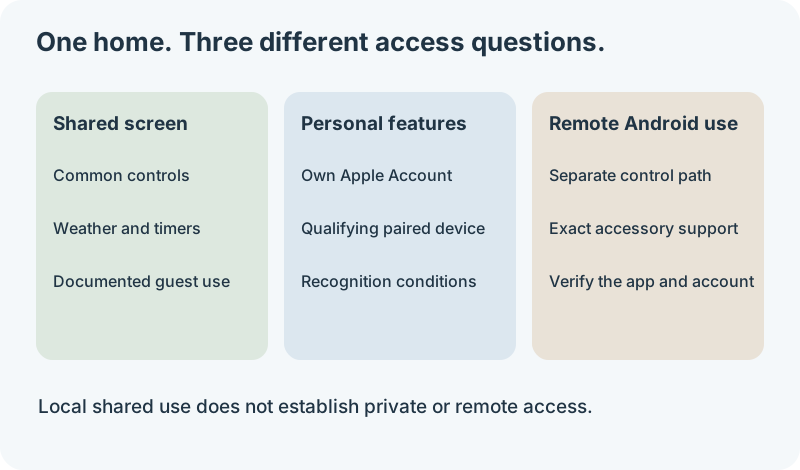
Read the diagram
- Shared screen: evaluate the common controls documented for local use.
- Personal features: check the individual account and qualifying paired device.
- Remote Android use: verify a separate supported app and accessory path.
Local screen access and remote phone access are different
Someone using HomeView while standing in the kitchen is using a household interface. Someone checking the home from a phone while away is asking for a remote control path. Success with the first does not establish the second.
For an Android resident, document both needs separately. They might be satisfied with local lighting controls but still need a way to check the door while traveling. HomeView’s shared screen description alone does not establish an Android remote app or account integration.
Some accessories have their own manufacturer apps or other supported platforms. Check the exact product’s documentation if you want to retain that access. Do not assume a second control path exists just because the accessory also appears in Apple Home.
Apple’s home sharing instructions also warn that permissions in a separate accessory app can remain after someone is removed from Home. This matters when reviewing a former resident’s access. Keep a list of the systems that actually grant control.
Plan shared routines without borrowing someone’s identity
A mixed household should not have to pretend that one resident’s private account belongs to everyone. First decide which information is genuinely shared. A common light scene and one person’s messages should not be put in the same category.
Suppose both adults want to see an upcoming family event. Record where that event is stored, who maintains it, and how each person expects to view or edit it. A calendar icon on the screen does not verify every sharing or editing workflow.
If the Android partner expects two way editing from their existing calendar app, check that workflow specifically. Avoid promising synchronization between providers that the launch documentation has not established. A useful shared display can still fall short of being a complete family calendar system.
The same distinction applies to photos and music. Decide whether a household collection is enough or whether each person needs their own library and account. A shared playback capability does not automatically include personal service access for every platform.
A mixed household task sheet
| Task | Where the person uses it | Evidence needed before buying |
|---|---|---|
| Turn on a room’s lights | At the shared screen | The exact accessories are in Home and the local interaction is supported |
| Review a private calendar | At the shared screen | The person’s own enrollment and paired device meet the personal requirements |
| Check the home while traveling | On an Android phone | A separately documented remote access path |
| Give a sitter temporary entry | At the entrance or through an approved app | The exact lock, credential method and permission schedule |
| Play a preferred subscription service | At the shared screen | The exact app, account and nearby device conditions |
The sheet can reveal that two products solve different parts of the same household need. HomeView may serve common interaction while an existing app handles a resident’s remote tasks. Compare that complete arrangement with alternatives instead of judging the screen in isolation.
Make essential controls usable when the Apple owner is away
Ask what happens when the person who configured the home leaves with their phone. Other residents still need an understandable way to use ordinary household equipment. A personal feature limitation should not turn into a confusing daily routine.
Keep existing physical controls available and make their purpose clear. Do not remove a working switch, key or manufacturer supplied fallback simply because a shared screen has been added. This is a household usability plan, not a claim that every device behaves identically during an outage.
Write down who can maintain the setup and where the nonsecret product instructions are kept. Record bridge models and accessory names so another resident can describe a problem accurately. The owner should not be the only person who knows which device controls the hallway light.
For personal tasks, use the paired device dependence guide to assess the owner’s absence. For ordinary controls, confirm the local behavior separately. Those checks prevent a personal access condition from being generalized to the whole home.
When another interface deserves a closer look
Compare alternatives when every adult needs equal private functionality from different phone platforms. Also compare them when remote Android access is central to the purchase. Those requirements are larger than being able to tap a common screen.
An alternative still needs its own account, privacy and compatibility review. A generic tablet or a different smart display is not automatically a better fit. Compare the same task sheet against each option, including the equipment you already own.
When a mixed household is a good fit
The strongest fit is a household with an eligible Apple owner and useful shared tasks for everyone else. Personal features can remain an additional benefit for enrolled users. They do not need to be the reason every person uses the device.
The weaker fit is a household expecting equal personalized access across phone platforms. A common touchscreen does not establish that equality. Record the missing personal functions before comparing alternatives.
Use the household requirements checker to separate shared and personal prerequisites. Then review the device eligibility guide for the intended Apple users.
HomeView Android compatibility is most useful when framed around what each person needs. That approach avoids both needless exclusion and unrealistic promises. Buy for the documented household experience, not for an assumed future one.