
Apple HomeView requirements start with a compatible iPhone running iOS 27.2 or later, or an iPad running iPadOS 27.2 or later. Personal Siri context adds Apple Intelligence eligibility and the required settings. Account enrollment, daily personal access and camera intelligence have further conditions.
On this page
- HomeView requirements by task
- The software check comes before the model check
- An iPad can be relevant without becoming the home hub
- Personal enrollment has its own checklist
- Personal context is not ordinary Siri use
- Recognition and phone state affect daily access
- Camera features add another layer
- Check four different kinds of compatibility
- Do six enrolled people mean six household users?
- Language settings and services can change the result
- A five minute eligibility worksheet
Start by choosing the task. Then check the device, software, account and service requirements attached to it. This prevents an unnecessary phone upgrade or a purchase based on an incomplete compatibility label.
HomeView requirements by task
| Task | What must be checked | What the result does not prove |
|---|---|---|
| First setup | A compatible iPhone or iPad on the required software | Eligibility for every personal AI feature |
| Personal household profile | Apple Account, compatible device and shared home membership | Access to personal content in every device state |
| Personal Siri context | Apple Intelligence device eligibility and Siri settings | Unlimited use of every server based function |
| Shared household use | A properly established home and the supported shared task | A personal Android profile or unrestricted security access |
| Camera intelligence | Compatible camera, eligible plan and required setup device | Every vendor camera feature or every recording resolution |
The software check comes before the model check
The store specifies iOS 27.2 or later, or iPadOS 27.2 or later, for the setup device. Confirm whether your device can run the required release. Its ability to run an earlier version of Apple Home does not settle this question.
Check the version installed now and the version available for that exact model. A software update notice on a different family member’s phone is not evidence about yours. Keep the model name and version together in your checklist.
Use the current Apple HomeView store FAQ as the requirement reference. A retailer filter listing many old iPhones can reflect accessory categories rather than setup compatibility.
Useful iPhone family distinctions
| Device family | Software starting point | Personal context check |
|---|---|---|
| iPhone 11 through 14 families | Listed for iOS 27; required release must be installed | Do not assume Apple Intelligence eligibility |
| iPhone SE, second and third generations | Listed for iOS 27; required release must be installed | Do not assume Apple Intelligence eligibility |
| iPhone 15 and 15 Plus | Listed for iOS 27 | Different from the 15 Pro models |
| iPhone 15 Pro and Pro Max | Check required software and settings | Included in Apple’s Apple Intelligence eligibility wording |
| Apple Intelligence enabled iPhone 16 models and later | Check required software and settings | Check language, region and feature conditions |
This is a family shortcut, not a promise that a particular software release is available on every device today. Check Apple’s iOS model list for the exact model. For personal context, also check the current Apple Intelligence requirements.
An iPad can be relevant without becoming the home hub
Apple includes a compatible iPad as a setup option. That may help a household whose shared Apple device is a tablet. It does not mean every old iPad qualifies.
Also separate setup from the home hub role. A tablet used to arrange accessories or display controls is doing a different job from a hub. The buying guide helps compare a new shared display with the equipment you already use.
Check the tablet’s availability during the routines you want to use. A device that travels to school or work may be a poor foundation for personal features at home. Eligibility on paper and availability in a household are separate concerns.
Personal enrollment has its own checklist
For a personal experience, the store describes an Apple Account, qualifying device and enrollment through the Home app. A visitor tapping a shared control is not performing that enrollment. Neither is a child using a common timer.
Make a row for each person who needs personal information. Record their account, device and required tasks. Leave shared use on a separate row so it is not mistaken for full personal access.
For an Android partner, ask whether shared controls are sufficient. If their main task is a private calendar or personal messages, generic guest use does not answer the need. The mixed household guide addresses that decision.
Personal context is not ordinary Siri use
Apple distinguishes personal context requests from broader conversational Siri functions. Personal context adds a paired Apple Intelligence enabled device and appropriate Siri settings. Check the current supported language and feature availability as well.
This is why a blanket statement that every owner needs the newest phone can mislead. First identify the personal function that matters. Then determine whether the existing device meets that function’s requirements.
The announcement footnotes contain these distinctions. Read the qualification attached to a feature, not only the headline description.
Recognition and phone state affect daily access
Meeting Apple HomeView requirements does not mean personal content appears at every moment. Recognition and paired device conditions can still matter during use. A supported device sitting elsewhere may not create the experience you expect.
Before buying for a family schedule, imagine the actual morning routine. Is the qualifying device nearby and available? Does the intended user want shared information or their own private information?
The phone dependence guide covers daily conditions. Keep it separate from this eligibility check so a setup requirement is not confused with a constant phone requirement.
Camera features add another layer
A camera can be compatible with Apple Home without supporting every newer intelligence function. The recording service and the setup device can add conditions. Treat camera viewing, recording and interpretation as separate rows.
Do not assume a subscription that permits recordings also permits every intelligence feature for the same camera count. Check the plan attached to the exact feature. The camera qualifications in the announcement footnotes describe this additional eligibility layer.
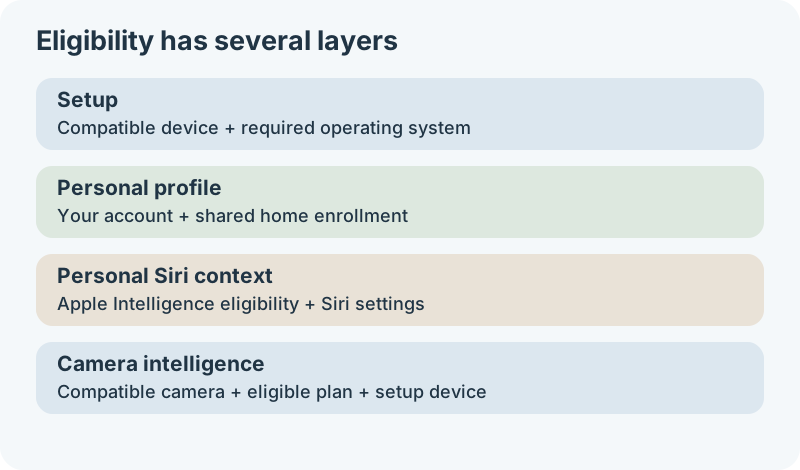
Read the diagram
- Setup: a qualifying iPhone or iPad with the required operating system.
- Personal profile: the user account and shared home enrollment.
- Personal Siri context: Apple Intelligence eligibility and appropriate settings.
- Camera intelligence: the camera, eligible plan and required setup device.
Check four different kinds of compatibility
Hardware eligibility, software availability, account access and feature eligibility answer different questions. A device can pass the hardware check while still needing an update. An updated device can belong to someone who has not joined the correct shared home.
A useful troubleshooting order follows those layers. Record the model first, the installed operating system second, and the account and home membership third. Check the specific feature conditions after those basics are established.
This order also helps when two residents have similar phones but expect different results. Compare the whole checklist rather than only the brand or generation. Their software, accounts, Siri settings and requested tasks may differ.
Setup eligibility is not a reason to replace every phone
Suppose a resident has a device that runs the required operating system but does not qualify for personal Apple Intelligence context. The missing capability affects that personal function. It does not establish that the resident needs new hardware for every shared use.
List what a replacement phone would add before budgeting for it. If those additions are optional, keep the upgrade outside the minimum HomeView setup cost. If private context is the main reason for buying, include the actual device upgrade in the comparison.
The same reasoning applies to an existing iPad. A qualifying household tablet may be relevant to setup, but it is not evidence that every resident can use one shared Apple Account as a substitute for separate enrollment. Check the personal arrangement for each intended user.
Do six enrolled people mean six household users?
The store describes up to six enrolled household members. That is a limit on the described personal enrollment arrangement, rather than a count of everyone who can ever stand at the display. The product FAQ separately describes common functions for guests and unrecognized users.
For a larger household, write down who needs a personal experience and who only needs shared functions. A child needing a timer is a different case from a resident expecting private messages. Do not assume that adding another display expands the enrollment limit without documentation.
If the purchase depends on seven or more distinct personal profiles, treat that as an unresolved requirement. Ask for an exact supported arrangement before ordering. The buying guide provides a framework for deciding when an unresolved feature should delay the purchase.
Language settings and services can change the result
A qualifying chip does not settle every Siri feature. Personal context also depends on the required Siri configuration and a supported language. In a multilingual home, check the language used by the person requesting the feature.
Keep language availability separate from the ability to see ordinary Home controls. A limitation on an AI conversation should not become an unsupported claim that the whole product is unusable. Equally, a working light control does not verify a private context request.
Subscription eligibility is another separate row. A media service can have its own account and content conditions. For cameras, use the exact feature and plan requirements rather than treating the presence of iCloud+ as a universal pass.
A record to keep for each personal user
| Field | Example of what to record | Why it matters |
|---|---|---|
| Person and task | A resident wants their own calendar context | Defines the feature being checked |
| Model and software | The full device model and installed version | Distinguishes eligibility from an update still needed |
| Account and home | The person’s account and intended shared home | Avoids confusing the owner’s setup with another user’s enrollment |
| Feature conditions | Siri settings, language and any service plan | Captures requirements beyond the operating system |
| Daily availability | When the paired device leaves home | Connects eligibility to the real routine |
Keep passwords and recovery details out of this worksheet. The record needs product and task information, not account secrets. Update it when you change the paired device, operating system or intended feature.
A five minute eligibility worksheet
- Write the exact feature you want, using a task rather than a marketing category.
- Record the model and installed software of the device that will support it.
- Check account and household enrollment requirements for the intended user.
- Record any language, camera or subscription condition attached to that feature.
- Mark unknown items as unresolved before adding products to a shopping basket.
The requirements checker helps organize these prerequisites. It does not inspect your hardware or prove a successful connection. Use its result as a checklist, then verify the exact model and current documentation.
HomeView requirements should lead to the smallest necessary change. If your existing equipment supports the task, keep it. If an essential condition is missing, resolve that specific condition before buying the display.