
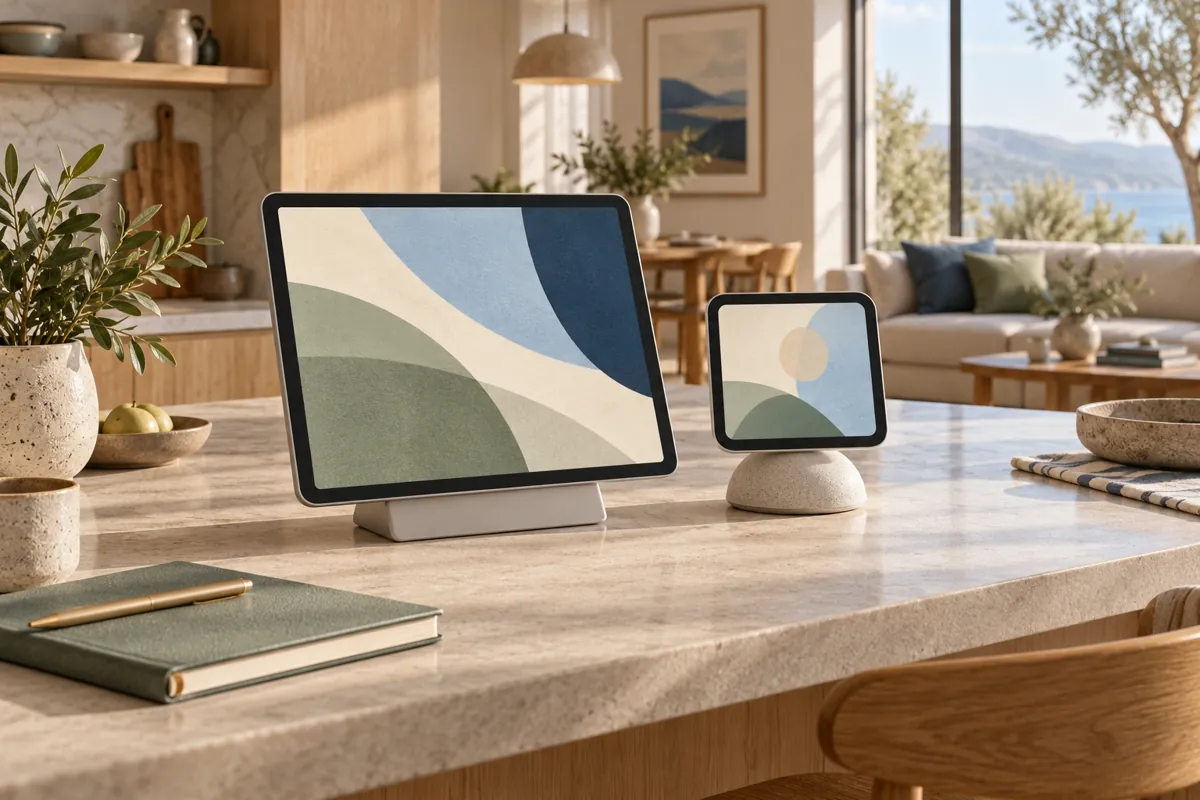
The Apple HomeView vs iPad decision starts with the tablet you already own. If it can perform your actual household task, try it before buying another screen. HomeView is more compelling when you want a dedicated shared interface rather than a general purpose personal device.
On this page
- HomeView vs iPad: compare the same household task
- App flexibility is the biggest distinction
- Reusing an iPad is a practical experiment
- Do not confuse a tablet controller with a home hub
- Shared access deserves its own comparison
- Charging and mounting affect daily usefulness
- Accessibility is about the person at the screen
- Compare ownership costs without hiding reuse
- A decision path for three households
- Measure friction rather than counting taps alone
- Reuse experimentTry the exact routine on an iPad you own
- FlexibilityCheck custom apps and browser requirements
- Shared usePlan accounts, locking and personal information
- Complete costCount mounting, power and maintenance work
Neither choice wins every scenario. A flexible dashboard, a family communication station and a simple light control panel are different projects. Comparing them under one broad label hides the tradeoffs that matter.
HomeView vs iPad: compare the same household task
Write down one routine you want to improve. It might be checking a camera while cooking or giving everyone access to lights. Describe who uses the screen and where they stand.
Then try that routine on your existing iPad. Do not judge it by a screenshot of someone else’s dashboard. Check the actual app, your accessories and the steps a household member must follow.
A tablet that works well for one person may be awkward for shared use. Conversely, a dedicated shared device may lack the flexibility a dashboard enthusiast wants. The Apple HomeView buying guide helps separate these goals.
| Decision | Existing iPad route | Dedicated shared screen route |
|---|---|---|
| You own suitable hardware | Reuse can reduce new spending | Buy only for a clear improvement |
| You need a custom dashboard | Verify the exact app or browser workflow | Do not assume full tablet app support |
| Several people share controls | Plan account, access and screen locking | Check shared versus personal functions |
| You want to move the screen | A tablet and removable stand may suit | Choose a physical model around the room |
| You need permanent power | Inspect charger, cable and placement | Follow the documented model power route |
| Personal information is visible | Review notifications and app access | Review recognition and paired device rules |
App flexibility is the biggest distinction
An iPad is a general purpose tablet with its own supported apps and browser workflows. What it can do depends on its model, software and the apps you use. An old tablet should be checked individually rather than treated as equivalent to a current one.
The Apple HomeView specifications describe a defined app selection and supported media apps. They do not establish the full iPad app catalog. The presence of Safari also does not prove that every custom dashboard will work as expected.
If you rely on Home Assistant, write down the interface features you need. Include custom cards, video feeds, kiosk behavior and authentication. Compare those requirements with actual support evidence.
The HomeView apps guide covers documented app categories. It is a better basis for a purchase than assuming an Apple screen runs every familiar Apple device app. Keep an unverified dashboard requirement clearly marked.
Reusing an iPad is a practical experiment
For a HomeView vs iPad trial, set the tablet in the intended location before drilling or ordering hardware. Use a stable temporary stand and a sensible cable route. Keep it away from splashes, heat and places where the cable can be pulled.
Ask another household member to perform the intended task without your help. Watch how many taps it takes and whether they understand the names. A setup that needs a tutorial every time may need simpler controls.
Try the screen in normal lighting. Check glare during the morning and visibility at night. The position that looks best in a photo may be uncomfortable at the time the household actually uses it.
This experiment does not measure HomeView performance. It tests whether a shared screen is useful at all. That evidence can prevent buying a dedicated product for a routine that does not need one.
Do not confuse a tablet controller with a home hub
Using the Home app on an iPad is different from relying on a device for home hub duties. Apple’s current hub setup documentation describes supported HomePod and Apple TV routes. Older household setups should not be assumed to match the current architecture.
Check your actual Home Hubs and Bridges list before changing hardware. Record which devices are already providing the needed system roles. A tablet experiment should not involve removing a working hub.
The same applies to accessory bridges. If a Hue bridge currently connects your lights, an iPad dashboard does not remove that dependency. Neither does a new shared screen automatically replace it.
Our compatible devices guide maps the connection path. Keep that inventory separate from the display decision. You can choose a better interface while preserving a working accessory system.
Shared access deserves its own comparison
A personal iPad may contain mail, photos, messages and signed in services. Leaving it available to everyone changes how those accounts are exposed. Review the screen’s notifications and accessible apps before treating it as household equipment.
A dedicated family tablet can avoid some conflicts, but it still needs a deliberate account plan. Decide who manages it, how software updates happen and how people recover access. Do not casually share passwords to make a dashboard easier to reach.
HomeView has documented shared and personal use rules. Those rules are not the same as handing an unlocked tablet to another person. The privacy guide explains the distinction and its limits.
Compare the exact task, such as adjusting lights, rather than saying one device is universally more private. Both physical placement and account settings matter. A private interface can still be visible to someone standing nearby.
Charging and mounting affect daily usefulness
A tablet installation needs more than a screen. Budget for a suitable stand or mount, the charger, cable management and an accessible outlet. Check whether the arrangement leaves room to remove the device for maintenance.
Inspect an older iPad for obvious battery swelling, case damage or charging faults. Stop using damaged hardware and seek appropriate service. Saving money is not a reason to turn a faulty device into permanent household equipment.
Avoid enclosing a tablet tightly without checking its manufacturer’s guidance. Heat, cable strain and access to controls all deserve attention. A mount designed for a particular model may not fit another tablet with a similar diagonal size.
HomeView’s wall model also needs a complete mounting and power route. The wall mount comparison explains the documented options. A comparison between a free tablet and a bare display price leaves out meaningful installation costs.
Accessibility is about the person at the screen
Check reading distance, reach and contrast with the actual users. A larger tablet may offer more room for information, but a crowded dashboard can still be difficult to use. Large controls and clear names often matter more than the device category.
Consider whether someone will use the screen while seated. A location comfortable for a tall standing adult may exclude another household member. Test temporary positions before committing to a permanent mount.
Voice features can help some users but should not become the only way to complete a task. Noise, speech differences and personal preferences can change the experience. Keep a straightforward touch or physical control option where practical.
For each candidate, check supported accessibility tools in the manufacturer’s documentation. Do not assume a familiar feature behaves identically across products. Actual setup with the user remains the useful test.
Compare ownership costs without hiding reuse
For a working iPad you already own, the new purchase cost may be limited to a stand and cable arrangement. That is different from buying a new iPad specifically for the project. Use the correct starting point.
For HomeView, include the complete physical installation. Keep subscriptions and optional services separate. Our HomeView cost guide and calculator can help organize the figures.
Add maintenance responsibilities to the comparison. Someone must update a custom dashboard, manage accounts and resolve connection changes. A cheap screen is less attractive if it creates a project nobody wants to maintain.
Do not invent a resale value in a HomeView vs iPad budget. If you plan to sell it, use an actual current offer in your own budget. Until then, treat its reuse value as a practical option rather than guaranteed cash.
A decision path for three households
A household that already uses a reliable iPad dashboard should identify a specific frustration before replacing it. If the problem is cluttered controls, redesigning the interface may help more than buying hardware. Keep the working tablet while testing alternatives.
A household with no dashboard experience can try an existing tablet first. The experiment reveals whether people use a shared screen voluntarily. That makes a later dedicated purchase easier to assess.
A household that wants a purpose built shared Apple experience should check HomeView’s person, app and accessory requirements. It may value that design over tablet flexibility. Those preferences are legitimate when they match documented capabilities.
At the October 14 research snapshot, HomeView’s announced availability is November 13, 2026. This comparison contains planning guidance, not a hands on verdict. Use it to define the test that shipping hardware must pass for your home.
Measure friction rather than counting taps alone
During the tablet trial, note whether people approach the screen voluntarily. A routine can have few taps yet remain inconvenient if the screen is locked or facing away. Record those obstacles alongside the app steps.
Ask what people do when the screen is unavailable. If they use a convenient physical control, a permanent display may have limited value. If they repeatedly borrow a phone instead, the shared interface could solve a clearer household problem.